Academic calculators built for real students.
CGPA Calculator
Add your courses and get your CGPA instantly.
Popular calculators
CGPA Calculator
Compute your Cumulative Grade Point Average across semesters.
Open → 📅Attendance Calculator
Track class attendance percentage and bunkable classes.
Open → 📘SGPA Calculator
Calculate a single semester GPA from course credits and grade points.
Open → 📊SAT Score Calculator
Estimate your SAT score from raw section performance.
Open → %CGPA to Percentage
Convert CGPA to percentage using standard multipliers.
Open → ⇄CGPA to GPA Converter
Convert a 10-point CGPA into a 4.0 US GPA scale.
Open → 🇺🇸US GPA Calculator
Calculate your GPA on the standard US 4.0 scale.
Open → 🇬🇧UK Classification
Find your UK degree classification from your average mark.
Open →Instant results
Every calculator updates live as you type — no page reloads, no waiting.
Accurate formulas
Built with the official conversion rules from major universities and boards.
Clean & minimal
Zero clutter. Focus on your numbers, not on ads getting in your way.
Built for students
Every tool is field-tested with real students across dozens of universities.
Pick a calculator
Choose from CGPA, GPA, attendance, SAT and more.
Enter your data
Add credits, grades or scores — no signup needed.
Get your result
Copy, screenshot or share your instant result.
See exactly what grades you need to hit your goal CGPA.
Skip manual spreadsheets — our tools compute in one tap.
Compare current results against your target grade.
Projected CGPA after Semester 6
How Students Can Stay Organized: Tools, Tips, and Useful Links
Grade tracking and calculations are only part of staying on top of school. A lot of students also rely on…
Read article →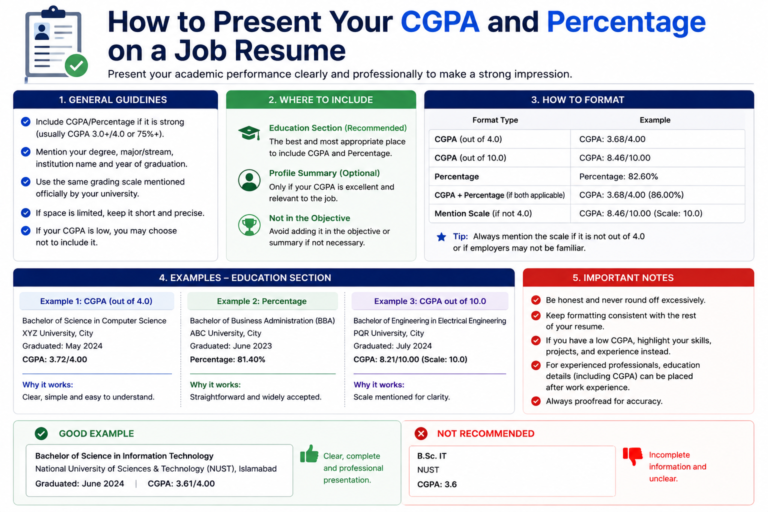
How to Present Your CGPA and Percentage on a Job Resume
Recruiters spend seconds, not minutes, on a first resume scan — which means how you present your CGPA or percentage…
Read article →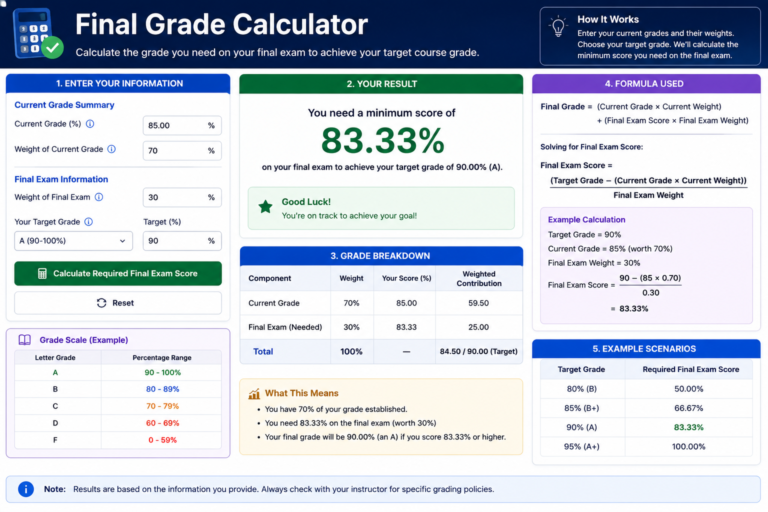
Final Grade Calculator: How Much Do You Need on Your Final Exam?
“How much do I need on my final?” is one of the most searched, most urgent questions in the days…
Read article →Are AcademicCalculator.com tools free?
Yes — every calculator is free with no signup or paywall.
How accurate are the results?
We use official conversion formulas from universities and boards. Always cross-check with your institution.
Do you store my grades or data?
No. All calculations run in your browser. We never save your inputs.
Can I use these calculators on mobile?
Absolutely — every tool is designed mobile-first.
Which grading systems do you support?
CGPA (10-point), US GPA (4.0), UK classification, NZ GPA, SAT scoring and more.